

video editing
If you make videos for TikTok, YouTube Shorts, Instagram Reels, ads, product promos, or even basic business content, you’ve probably heard people hype up CapCut like it’s some kind of magic editing app. And honestly? A lot of that hype is deserved. But there’s also a mountain of misleading reviews pretending CapCut is either a flawless Adobe killer or complete trash. Reality sits somewhere in the middle.
CapCut became huge because it solved a problem most video editors ignored for years: people wanted fast content, not film school. Traditional editors like Adobe Premiere Pro and DaVinci Resolve are incredibly powerful, but they can feel painfully slow for social media creators. CapCut flipped the experience entirely. Instead of building around timelines first, it built around speed, templates, captions, vertical video, trends, and AI automation. That changed everything.
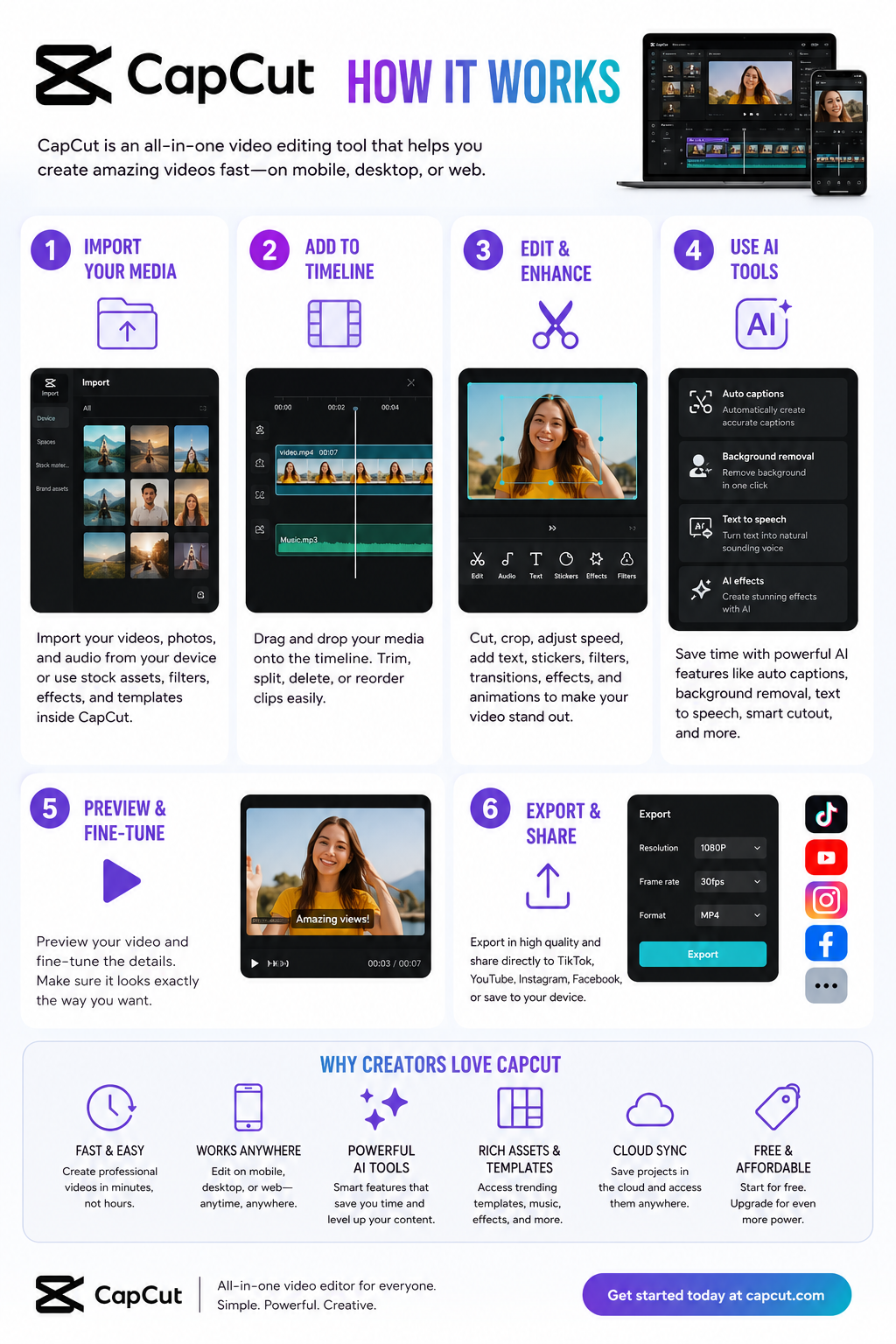
The biggest reason CapCut exploded is simple: it removes friction. You can record a clip, auto-caption it, add transitions, background music, motion effects, zoom cuts, and export something that looks professionally edited in minutes. For short-form creators, that matters more than advanced cinema-grade controls. Reddit creators constantly mention that CapCut’s workflow feels dramatically faster for social media content than older professional editors.
Where CapCut really shines is automation. Auto-captions alone save creators hours every week. The AI subtitle system is surprisingly accurate for normal speech and automatically styles captions for social platforms. Background removal is another standout feature. Instead of manually masking subjects frame-by-frame like older editing software required, CapCut lets beginners create polished edits with one click.
The mobile experience is arguably the best part of the entire platform. Most mobile editors still feel like stripped-down desktop software. CapCut doesn’t. It was designed around phones from the start, and that matters. The controls feel intuitive, templates load fast, and exporting vertical videos for social media is dead simple. For creators who mainly work from phones, CapCut honestly feels years ahead of many competitors.
The desktop version has improved massively too. A lot of people still think CapCut is “just a mobile app,” but that’s outdated thinking. The desktop editor now includes multi-track editing, AI tools, motion tracking, keyframes, effects libraries, templates, voice generation, and advanced export options.
Now let’s talk about the part most fake reviews avoid: the downsides.
CapCut is not a true replacement for high-end professional editing software if you work on long-form cinematic projects, documentaries, feature production, advanced audio mastering, or heavy color grading. It simply isn’t built for that level of complexity. You can absolutely create professional-looking content in CapCut, but there’s a difference between “professional-looking social content” and full-scale production workflows.
Another issue is platform dependence. CapCut is deeply tied to the short-form social media ecosystem, especially TikTok and vertical video culture. That’s great if your business depends on viral content. It’s less ideal if you want timeless editing workflows that aren’t built around trends.
The pricing situation is also confusing now. CapCut used to feel ridiculously generous for free users. Today, more AI features, effects, templates, and advanced exports are moving behind paid plans. The free version is still strong, but some users feel frustrated because features they relied on became Pro-only over time.
That said, compared to Adobe pricing, CapCut Pro is still relatively affordable for most creators. Many Reddit users openly say they switched because the value proposition made more sense for social media work.
There’s another issue that deserves real attention: privacy and ownership concerns.
CapCut’s parent company is ByteDance, the same company behind TikTok. In recent years, critics raised concerns about terms of service language related to uploaded content and usage rights. Some creators became uncomfortable with how broad the licensing terms appeared.
For casual creators making memes or short clips, this probably won’t matter much. But if you work with sensitive client projects, unreleased campaigns, commercial footage, or intellectual property, you should absolutely read the terms yourself before uploading valuable assets to cloud-based AI tools. This is one of those things most influencer reviews conveniently skip over.
Another thing worth mentioning is how much CapCut changed the industry itself. Instagram literally launched a competing editor called Edits because CapCut became such a dominant creator tool. That alone tells you how influential the platform became.
For beginners, CapCut is probably one of the best editing tools available right now. The learning curve is low, results come fast, and the free version is powerful enough to start building content immediately. Most new creators do not need Premiere Pro on day one. They need consistency, speed, and motivation. CapCut helps with all three.
For businesses, CapCut can be a surprisingly powerful marketing tool. Small businesses constantly struggle with content creation because traditional editing is time-consuming and expensive. CapCut’s templates, auto-captions, AI tools, and quick editing workflows dramatically reduce production time for ads, product showcases, tutorials, testimonials, and social campaigns.
For advanced editors, CapCut works best as a companion tool rather than a full replacement. Many professionals actually use both. They’ll cut quick social clips in CapCut while keeping larger productions inside Premiere or DaVinci.
So is CapCut worth it?
Yes — for most creators, absolutely.
But not because it’s the “best editor ever.” It’s worth it because it understands modern content better than most traditional editing software. It prioritizes speed over perfection, automation over complexity, and publishing over polishing endlessly. That’s exactly what most internet creators need right now.
If you’re a beginner creator, small business owner, affiliate marketer, YouTuber, TikTok creator, coach, ecommerce brand, or someone trying to produce content consistently without a massive learning curve, CapCut is probably one of the smartest tools you can start with.
If you’re editing films, documentaries, broadcast work, or highly technical productions, you’ll probably outgrow it eventually.
But for the modern creator economy? CapCut nailed the assignment better than almost anyone else.
Video content has become a cornerstone of modern marketing, education, and storytelling. Yet, creating professional-grade videos often feels daunting—time-consuming, expensive, and technically complex. Enter InVideo AI, an AI-powered video creation platform that promises to simplify the process, making it accessible for businesses, content creators, and educators alike. In this blog post, we’ll dive into InVideo AI’s pricing, features, how to use it for your business, its overall quality, and some tips to maximize its potential in 2025. This is one of 9malls newest merchants.
InVideo AI Pricing: Plans for Every Need
InVideo AI offers a range of pricing plans tailored to different users, from solo creators to large businesses. Below is a breakdown of the plans as of 2025, with a 20% discount applied to annual billing where noted. All prices are approximate and based on monthly billing unless specified.
Free Plan ($0/month): Perfect for beginners or those testing the waters, the Free plan offers:
Up to 10 minutes of AI-generated video content per week.
10 GB of storage.
4 exports per week with an InVideo watermark.
Access to over 5,000 templates and a standard media library.
AI script generation and text-to-speech narration.
Limitations: Watermarked videos, no HD exports, and limited access to premium features like iStock media or generative credits.
Plus Plan (~$28/month, $22.40/month annually):
A step up for regular creators, this plan includes:50 minutes of AI-generated content per month.
80 iStock media clips.
100 GB storage.
Unlimited exports without watermarks.
2 AI voice clones for personalized narration.
Best for: Small businesses, bloggers, or YouTubers needing consistent, professional output.
Max Plan (~$48/month, $38.40/month annually):
Designed for high-volume creators, this plan offers:200 minutes of AI-generated content per month.
320 iStock media clips.
400 GB storage.
Up to 5 AI voice clones.
Unlimited exports in full HD.
Best for: Agencies, established businesses, or creators producing frequent content.
Generative Plan (~$96/month, $76.80/month annually):
Tailored for advanced users needing extensive customization:200 minutes of AI generation with up to 15 million generative credits.
Access to premium features for highly customized videos.
Best for: Large organizations or creators with complex, high-volume video needs.
Enterprise Plan (Custom Pricing):
Offers advanced security, flexible pricing, and custom solutions for large organizations. Contact InVideo directly for details.
Tip: InVideo occasionally offers lifetime deals or promotions on platforms like AppSumo, so keep an eye out for discounts. Also, note that quotas (e.g., exports, iStock credits) reset monthly and do not roll over.
Value Proposition: Compared to competitors like Synthesia or Runway, InVideo AI’s pricing is competitive, especially for the Plus and Max plans, offering robust features at a lower cost than tools like Filmora or Camtasia. The Free plan is notably generous, providing more templates and tools than competitors like Canva or Animoto.
Key Features of InVideo AI
InVideo AI combines intuitive design with powerful AI-driven tools to streamline video creation. Here are its standout features:
AI Video Generator: Transform text prompts, scripts, or blog posts into full videos in minutes. The AI selects relevant stock media, generates scripts, and adds voiceovers, making it ideal for repurposing content.
Extensive Template Library: Over 6,000 customizable templates for platforms like YouTube, TikTok, and Instagram Reels, covering everything from ads to tutorials.
Stock Media Library: Access over 16 million royalty-free assets, including images, videos, and music from iStock, Shutterstock, and Storyblocks (premium assets vary by plan).
AI Voiceovers and Cloning: Choose from over 30 high-quality AI voices in multiple languages or create personalized voice clones. While not perfect for nuanced storytelling, they’re excellent for marketing and explainer videos.
Text-to-Video Conversion: Convert blog posts or articles into engaging videos with AI-selected visuals and transitions, perfect for content marketers.
Clipmaker for Short-Form Content: Turn long-form videos into bite-sized clips for social media with simple cut, snap, and trim tools.
Real-Time Collaboration: Multiplayer editing allows teams to work together seamlessly.
Drag-and-Drop Editor: An intuitive interface lets users customize templates, text, colors, and media without technical skills.
Brand Kits: Save logos, colors, and fonts for consistent branding across projects, a must for agencies and marketing teams.
Mobile App: Edit on the go with iOS and Android apps, though the web platform is more robust for complex edits.
Recent Updates (2025): InVideo AI v3.0 enhances full video generation from prompts, including scripts, visuals, and voiceovers, reducing reliance on manual tweaks compared to earlier versions.
How to Use InVideo AI for Your Business
InVideo AI is a versatile tool for businesses of all sizes, from startups to enterprises. Here’s a step-by-step guide to leveraging it effectively:
Sign Up and Choose a Plan: Visit invideo.io and sign up using Google, Apple, or email. Start with the Free plan to explore, then upgrade based on your needs.
Select a Workflow or Template: Choose from six premade workflows (e.g., YouTube Shorts, TikTok) or browse the template library by category (e.g., marketing, education). Use the search bar for specific goals.
Input Your Prompt: Write a detailed text prompt (e.g., “Create a 30-second TikTok video for a fitness app, showcasing workout tracking with an upbeat tone and a call-to-action”). Specify tone, audience, platform, and duration for best results.
Customize the Output: Use the drag-and-drop editor or text-based “Magic Box” to tweak visuals, text, voiceovers, or pacing. Upload your own media or use the stock library for personalization.
Review and Export: Check for errors, ensure brand consistency, and export in your desired resolution (up to 1080p). Share directly to social media or download for later use.
Integrate with Your Workflow: Pair with tools like Buffer or Later for automated social media posting, or use InVideo’s analytics to track engagement.
Business Use Cases:
Marketers: Create quick ads, product demos, or social media snippets to boost brand visibility.
Ecommerce: Generate product promos or tutorials to drive conversions.
Educators: Produce engaging e-learning videos or presentations.
Content Creators: Repurpose blogs into YouTube videos or create viral TikTok clips.
Agencies: Use brand kits and collaboration tools to manage client projects efficiently.
Pro Tip: For optimal results, write clear, specific prompts. For example, “Create a 60-second YouTube explainer video for a SaaS product, targeting startups, with a professional female voiceover and a problem-solution structure.” Experiment with different voices and tones to match your brand.
Is InVideo AI Any Good?
InVideo AI has earned strong praise for its ease of use, affordability, and versatility, with ratings averaging above 4.5/5 on platforms like G2 and Trustpilot. Here’s a balanced look at its strengths and weaknesses:
Pros:
User-Friendly: The intuitive interface and drag-and-drop functionality make it accessible for beginners, with no editing experience required.
Time-Saving: AI automation cuts video production time from hours to minutes, ideal for high-volume content needs.
Versatile: Supports a wide range of use cases, from social media to corporate presentations, with multilingual voiceovers for global audiences.
Affordable: Competitive pricing compared to Synthesia or Runway, with a robust Free plan.
Strong Support: 24/7 live chat, a helpful Facebook group, and extensive documentation.
Cons:
AI Limitations: Complex prompts or technical terms may result in less accurate visuals or voiceover pronunciations, requiring manual tweaks.
Occasional Glitches: Some users report slowdowns or bugs with complex edits or longer videos.
Watermark on Free Plan: Limits commercial use unless you upgrade.
Internet Dependency: As a cloud-based tool, it requires a stable connection, with no offline editing option.
Not for Advanced Editing: Lacks the precision of tools like Adobe Premiere for cinematic or highly customized projects.
User Feedback: On Reddit, users praise the text-to-video feature and natural-sounding AI voiceovers but note occasional scene transition glitches. G2 reviews highlight the extensive template library and value for small teams, while some Quora users report mixed experiences with stock media relevance.
Verdict: InVideo AI is an excellent choice for businesses, marketers, and creators prioritizing speed, affordability, and ease of use. It’s not perfect for high-end, movie-style editing, but for marketing videos, social media content, or educational materials, it’s a game-changer.
Why InVideo AI Stands Out in 2025
InVideo AI’s combination of AI automation, a vast media library, and an intuitive editor makes it a top contender in the AI video space. Here are a few reasons it’s worth considering:
Scalability: From solo creators to large agencies, its pricing and features cater to diverse needs.
Global Reach: Multilingual voiceovers and subtitles support businesses targeting international audiences.
Business Growth: InVideo AI closed FY 2024 with $30 million in revenue and is projected to hit $50 million in 2025, with a valuation of $200 million, reflecting strong user growth and trust.
Community and Resources: InVideo’s blog, YouTube channel, and community offer tutorials and inspiration, helping users maximize the platform.
Unique Angle: Unlike competitors like Animaker, which focuses heavily on animated videos, InVideo AI balances AI-driven automation with traditional editing, offering flexibility for both quick content and polished projects. Its integrations with platforms like YouTube and data systems (for Enterprise plans) add further value.
Tips to Get the Most Out of InVideo AI
Leverage Brand Kits: Upload your logo and brand colors to maintain consistency across videos.
Experiment with Prompts: Test different tones and structures to find what resonates with your audience.
Use the Clipmaker: Repurpose long-form content into short clips for TikTok or Instagram to maximize reach.
Combine with Other Tools: Pair InVideo with analytics tools or social media schedulers for a streamlined workflow.
Final Thoughts
InVideo AI is a powerful, user-friendly tool that democratizes video creation for businesses, creators, and educators. Its affordable pricing, robust feature set, and AI-driven automation make it ideal for producing professional videos quickly, especially for marketing and social media. While it has some limitations—like occasional glitches or less precise AI outputs for complex prompts—it delivers exceptional value for its cost. Whether you’re a small business owner crafting product promos, a YouTuber churning out explainer videos, or an agency managing client projects, InVideo AI can streamline your workflow and elevate your content in 2025.
Ready to try it?
Sign up for the Free plan at invideo.io and start creating stunning videos today.